Sync Knobs Across Multiple Nuke Nodes with Python
On multiple occasions, we need to set the same knob values across several nodes in Nuke. Doing it manually is always an option, but we can automate the process with a small Python script.
PYTHON
Federico Sibella
2 min read
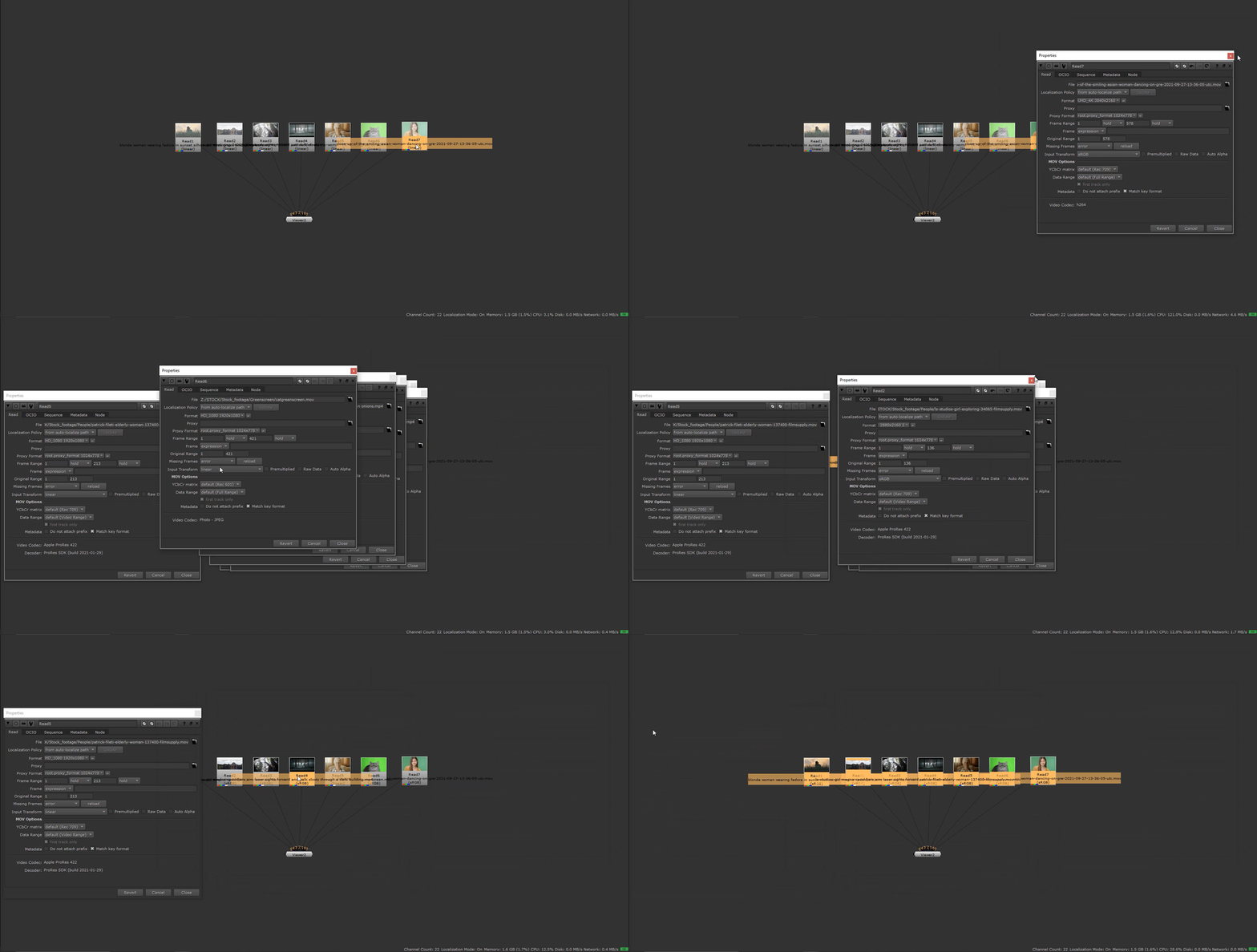
We’ve all run into this at least once: you have several nodes... sometimes dozens, that need the same change applied across the board. Maybe it’s the colorspace knob on a bunch of Read nodes, the localization policy on several DeepReads, or something similar. The problem is that even if you select them all, there’s no built-in, immediate way to propagate a knob change to every selected node at once. Sure, you can automate it by running a Python snippet in the Script Editor, but for many of us writing code isn’t exactly a good time. That’s why this article shares a small Nuke add-on: a quick tool that lets you sync knob changes across multiple nodes.
The idea behind the code
It’s pretty simple: once you’ve selected all the nodes you want to edit, you run the sync function. The last selected node becomes the DRIVER, and any knob changes you make on it are automatically mirrored to the rest of the selected nodes. When you’re done, you run the stop function, which removes the link and leaves all nodes independent again.
Full script here or view on GitHub Gist
How to install
First, locate your .nuke folder. If you’re not sure where it lives on your operating system, Foundry has a helpful FAQ that lists the default paths.
Once you’ve found your .nuke folder, create a python subfolder where you’ll store your .py scripts (if it doesn’t already exist). This isn’t mandatory, but it’s a clean way to keep things organized.
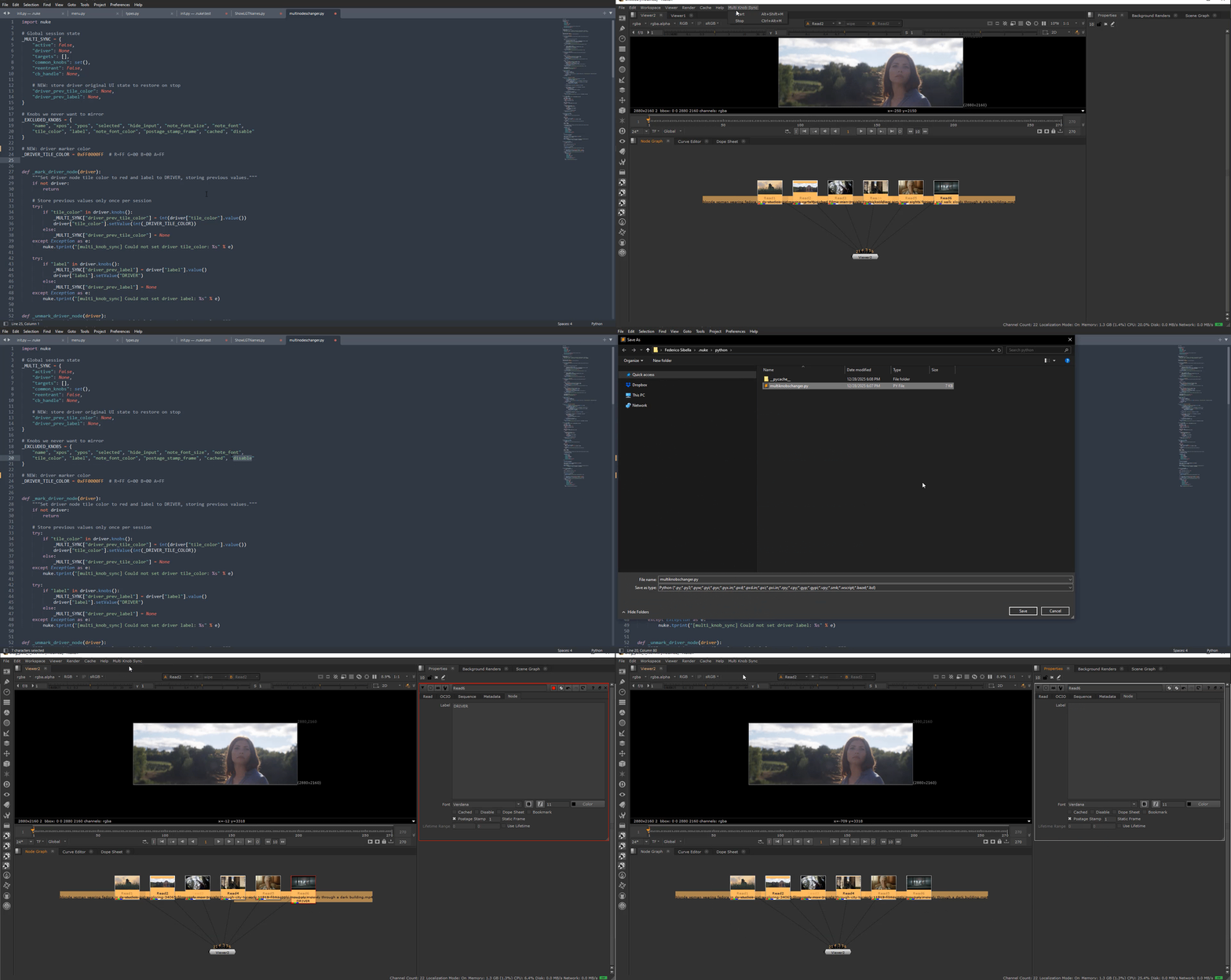
Next, copy the full script, paste it into a plain text editor, and save it as, for example, multiknobschanger.py inside:
.nuke/python/multiknobschanger.py
Make sure the filename ends with .py , the extension is what tells Nuke (and your operating system) that this is a Python file.
Now let's set up our init.py and menu.py.
Add the following line to your init.py (create the file if it doesn’t exist and save it into your main .nuke folder). This tells Nuke to also look inside the python folder when loading scripts:
nuke.pluginAddPath("./python")
import nuke
Add the following line to your menu.py (create the file if it doesn’t exist and save it into your main .nuke folder).
import nuke
import multiknobschanger as mks
def _mk_menu():
m = nuke.menu("Nuke").addMenu("Multi Knob Sync")
m.addCommand("Start", "mks.start_multi_knob_sync()", "shift+alt+m")
m.addCommand("Stop", "mks.stop_multi_knob_sync()", "ctrl+alt+m")
_mk_menu()
Note1: If you save your script with a different filename instead of multiknobschanger.py, make sure to import that exact name in your menu.py
Note2: The shortcuts I chose work in my personal setup because they don’t conflict with any existing key combinations. Feel free to change them to match your own preferences (and avoid collisions with your current hotkeys).
Note3: Once you have saved your init.py and menu.py, launch Nuke. You should see a new top-level menu called "Multi Knob Sync"
Customization
You’ll find a section in the script that defines which knobs should not be mirrored across nodes. This list lives in the _EXCLUDED_KNOBS set. To customize the behavior, simply add knob names to exclude them from syncing, or remove names to allow them to sync. Save the updated script and restart Nuke for the change to take effect.
That's it! Hope this might be helpful!
You can also find me here:
© 2024. All rights reserved. VAT:03898270040
Compositing is a side gig! My real superpower is telling dad jokes